Every Keyboard Shortcut You Actually Need in 2026 (Windows + Mac Cheat Sheet)
The complete 2026 keyboard shortcut guide for Windows 11 and Mac. Snap layouts, Copilot key, macOS tiling, screenshots, text editing, and every shortcut worth memorizing.

You already know Ctrl+C and Cmd+C. Congratulations. You have graduated from computer kindergarten.
But here is the thing most people never figure out: the gap between "I know copy and paste" and "I actually use keyboard shortcuts" is worth about 64 hours a year. That is eight full workdays you are currently spending dragging your mouse to the File menu like it is 2004.
This is the guide that fixes that. Every shortcut worth knowing in 2026, organized by what you actually do on a computer, with both Windows and Mac side by side. No filler. No shortcuts for adjusting your keyboard brightness in Mongolian. Just the ones that make you visibly faster.
The 10 shortcuts everyone should know before anything else
These work on almost every app, every platform, every situation. If you only memorize 10 shortcuts for the rest of your life, these are the ones.
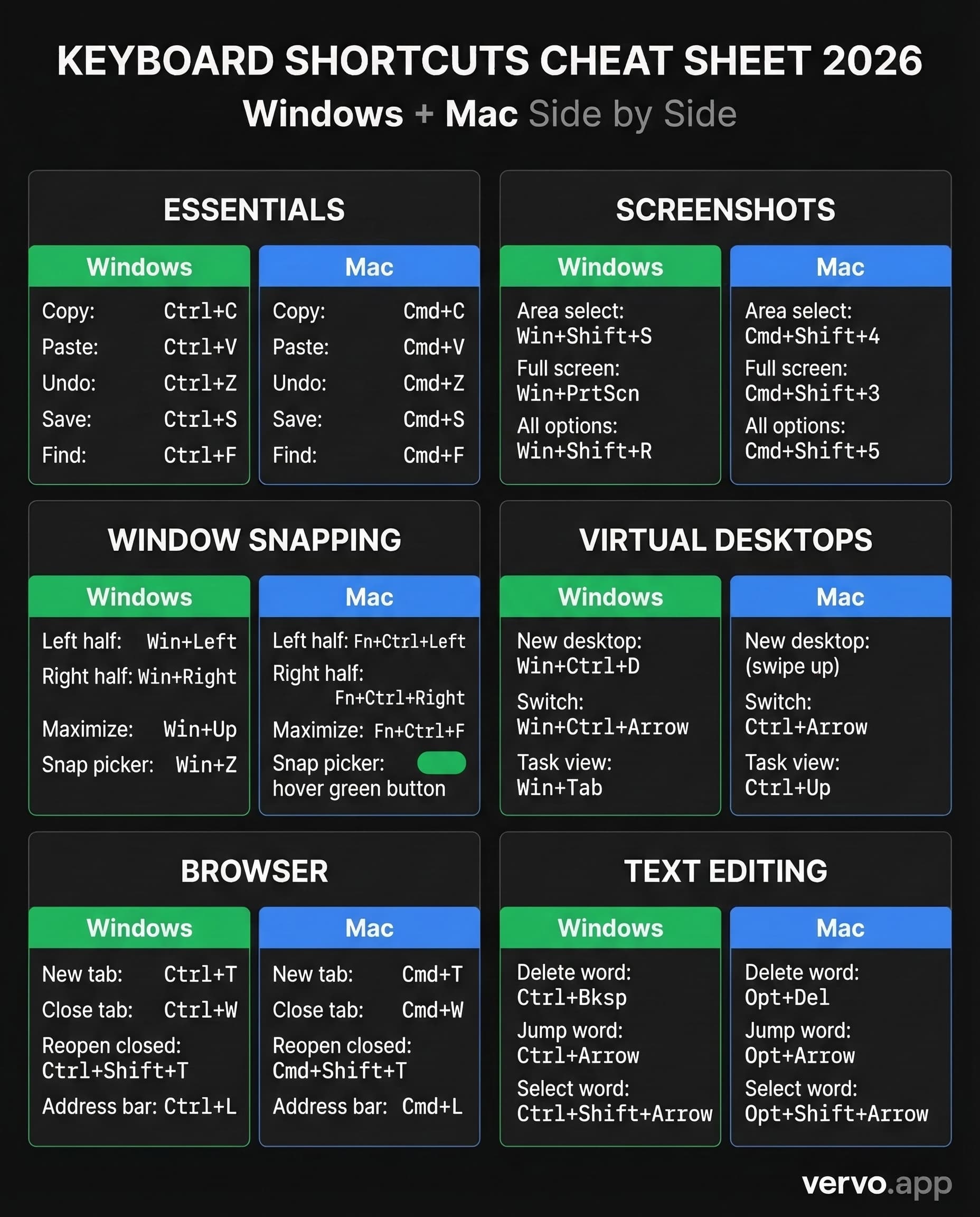
| Action | Windows | Mac |
|---|---|---|
| Copy | Ctrl + C | Cmd + C |
| Cut | Ctrl + X | Cmd + X |
| Paste | Ctrl + V | Cmd + V |
| Paste without formatting | Ctrl + Shift + V | Cmd + Shift + V |
| Undo | Ctrl + Z | Cmd + Z |
| Redo | Ctrl + Y | Cmd + Shift + Z |
| Select all | Ctrl + A | Cmd + A |
| Find | Ctrl + F | Cmd + F |
| Save | Ctrl + S | Cmd + S |
| Close window/tab | Ctrl + W | Cmd + W |
That last one -- paste without formatting -- is the one that changed how I use a computer. No more pasting text from a website and watching it show up in 47-point Comic Sans with a purple background. Just the words. Clean.
Screenshot shortcuts (the ones you will use every single day)
Screenshots are the new communication. You screenshot receipts, error messages, conversations, memes, proof that someone said what they said. Knowing how to capture your screen fast is not optional anymore.
| Action | Windows | Mac |
|---|---|---|
| Screenshot entire screen | Win + PrtScn (saves to folder) | Cmd + Shift + 3 |
| Screenshot a selected area | Win + Shift + S | Cmd + Shift + 4 |
| Screenshot + record options | Win + Shift + R (video) | Cmd + Shift + 5 (all options) |
| Screenshot active window only | Alt + PrtScn (clipboard) | Cmd + Shift + 4 then Space |
Windows: Win + Shift + S opens the Snipping Tool overlay. Drag to select exactly what you want. It copies straight to your clipboard and shows a notification to annotate or save.
Mac: Cmd + Shift + 5 opens the full screenshot toolbar. Capture the entire screen, a window, or a selection. Record video. Set a timer. Choose where to save. It is the Swiss Army knife of screen capture.
Window management (this is where it gets good)
Window management is the single biggest productivity upgrade hiding in your operating system. Stop dragging windows around with your mouse like you are rearranging furniture. Your keyboard can do it in a fraction of a second.
Windows 11 Snap Layouts
Windows 11 made snapping windows genuinely elegant. Hold the Windows key and use arrow keys to place windows exactly where you want them.
| Action | Shortcut |
|---|---|
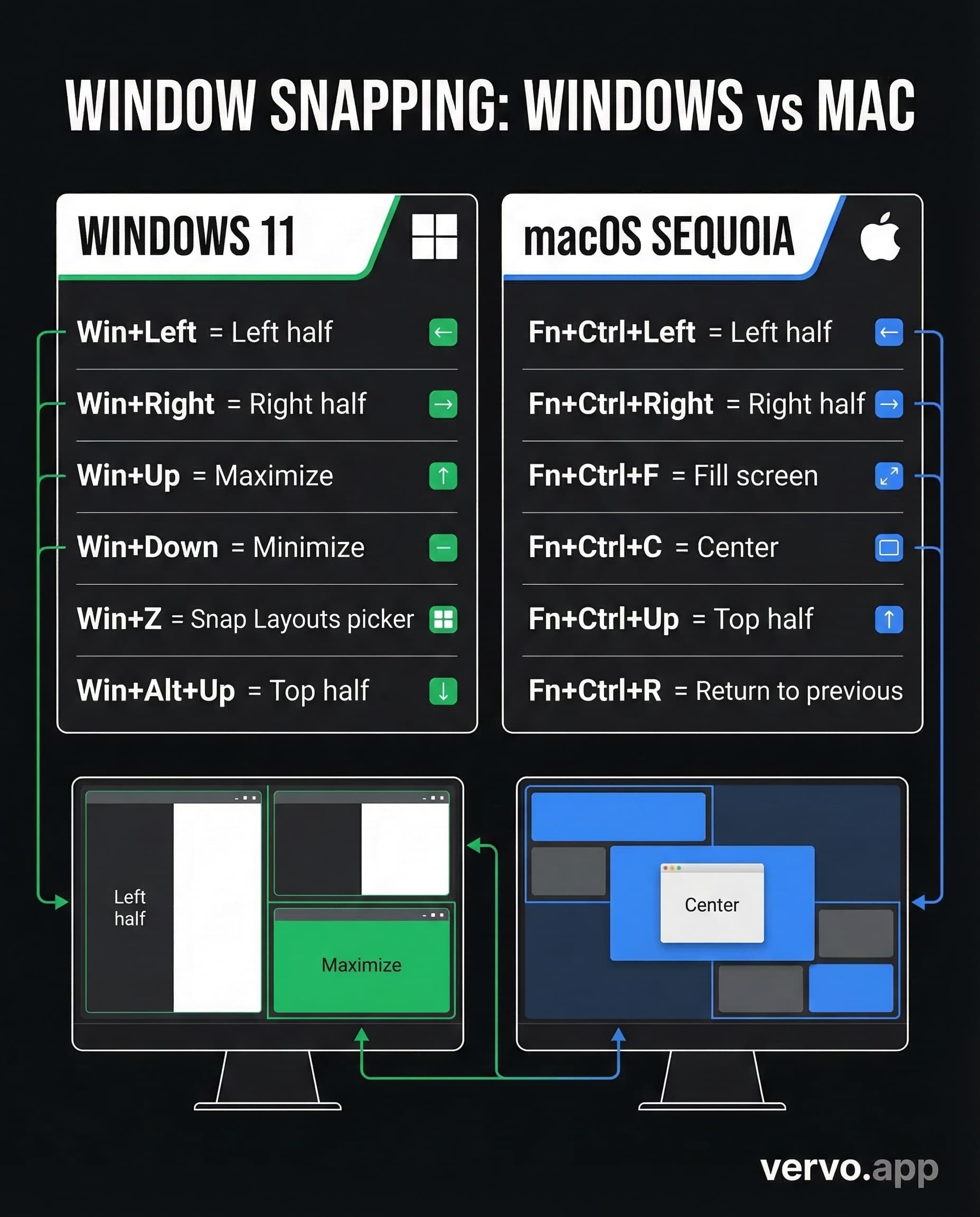
| Snap window to left half | Win + Left Arrow |
| Snap window to right half | Win + Right Arrow |
| Maximize window | Win + Up Arrow |
| Minimize window | Win + Down Arrow |
| Snap to top-left quarter | Win + Left Arrow, then Win + Up Arrow |
| Snap to top-right quarter | Win + Right Arrow, then Win + Up Arrow |
| Snap to bottom-left quarter | Win + Left Arrow, then Win + Down Arrow |
| Snap to bottom-right quarter | Win + Right Arrow, then Win + Down Arrow |
| Open Snap Layouts picker | Win + Z |
| Snap to top half | Win + Alt + Up Arrow |
| Snap to bottom half | Win + Alt + Down Arrow |
Win + Z is the underrated one. It pops open a visual layout picker right on the window. Pick a two-panel layout, three-panel layout, or four-panel grid. Click the zone you want. Done.
macOS Sequoia Window Tiling (new in 2024-2025)
Apple finally added native window tiling in macOS Sequoia. No more paying for third-party apps to do what should have been built in years ago.
| Action | Shortcut |
|---|---|
| Fill entire screen | Fn + Control + F |
| Center window | Fn + Control + C |
| Left half | Fn + Control + Left Arrow |
| Right half | Fn + Control + Right Arrow |
| Top half | Fn + Control + Up Arrow |
| Bottom half | Fn + Control + Down Arrow |
| Left and right split (both windows) | Fn + Control + Shift + Left Arrow |
| Right and left split (both windows) | Fn + Control + Shift + Right Arrow |
| Top and bottom split (both windows) | Fn + Control + Shift + Up Arrow |
| Return to previous size | Fn + Control + R |
You can also hover over the green traffic light button on any window to see tiling options visually. But once you learn the keyboard shortcuts, you will never touch that button again.
Virtual desktops (your secret weapon for focus)
Virtual desktops are one of the most underused features on both platforms. Think of them as separate workspaces you can switch between instantly. One desktop for work. One for personal. One for that project you keep meaning to finish.
Windows
| Action | Shortcut |
|---|---|
| Open Task View | Win + Tab |
| Create new desktop | Win + Ctrl + D |
| Switch to desktop on the right | Win + Ctrl + Right Arrow |
| Switch to desktop on the left | Win + Ctrl + Left Arrow |
| Close current desktop | Win + Ctrl + F4 |
Mac
| Action | Shortcut |
|---|---|
| Open Mission Control | Control + Up Arrow |
| Show all windows of current app | Control + Down Arrow |
| Switch between desktops | Control + Left/Right Arrow |
| Show desktop | Fn + F11 or Cmd + Mission Control |
The play: Set up three desktops. Desktop 1 is your main workspace. Desktop 2 is communication (email, Slack, messages). Desktop 3 is research or reference material. Swipe between them instead of drowning in a pile of overlapping windows.
Text editing shortcuts (the speed run)
These work in almost every text field on your computer -- documents, emails, search bars, even the URL bar in your browser. They turn you from someone who types to someone who edits.
Navigation
| Action | Windows | Mac |
|---|---|---|
| Jump to beginning of line | Home | Cmd + Left Arrow |
| Jump to end of line | End | Cmd + Right Arrow |
| Jump to beginning of document | Ctrl + Home | Cmd + Up Arrow |
| Jump to end of document | Ctrl + End | Cmd + Down Arrow |
| Jump one word left | Ctrl + Left Arrow | Option + Left Arrow |
| Jump one word right | Ctrl + Right Arrow | Option + Right Arrow |
Selection
| Action | Windows | Mac |
|---|---|---|
| Select one word left | Ctrl + Shift + Left | Option + Shift + Left |
| Select one word right | Ctrl + Shift + Right | Option + Shift + Right |
| Select to beginning of line | Shift + Home | Cmd + Shift + Left |
| Select to end of line | Shift + End | Cmd + Shift + Right |
| Select entire paragraph up | Ctrl + Shift + Up | Option + Shift + Up |
| Select entire paragraph down | Ctrl + Shift + Down | Option + Shift + Down |
| Select to beginning of document | Ctrl + Shift + Home | Cmd + Shift + Up |
| Select to end of document | Ctrl + Shift + End | Cmd + Shift + Down |
Deletion
| Action | Windows | Mac |
|---|---|---|
| Delete word to the left | Ctrl + Backspace | Option + Delete |
| Delete word to the right | Ctrl + Delete | Fn + Option + Delete |
That delete-word shortcut is life-changing. Instead of hammering backspace twelve times to erase a word, one keystroke. Gone.
The 2026 shortcuts (what is new this year)
The Copilot Key (Windows)
New Windows PCs in 2025-2026 ship with a dedicated Copilot key next to the spacebar -- the first new key added to the Windows keyboard since the Windows key in the 1990s. Press it once and Copilot opens.
| Action | Shortcut |
|---|---|
| Open Copilot | Copilot key or Win + C |
| Open emoji panel | Win + Period (.) |
| Open clipboard history | Win + V |
| Voice dictation | Win + H |
| Open Recall (compatible devices) | Win + J |
| Screen record | Win + Shift + R |
Customize it: If you do not use Copilot, go to Settings > Personalization > Text input > Customize Copilot key. You can remap it to open a different app entirely.
macOS Sequoia + macOS 15 Additions
| Action | Shortcut |
|---|---|
| Quick Note | Fn + Q |
| Show/hide Dock | Fn + A |
| Show/hide Control Center | Fn + C |
| Start/stop Dictation | Fn + D |
| Show/hide Notification Center | Fn + N |
| Show/hide Launchpad | Fn + Shift + A |
| Open Character Viewer | Fn + Fn (double press) |
| Type to Siri | Cmd + Cmd (double press) |
The Fn key on Mac quietly became a power key. Most people press it by accident and have no idea it does anything. Now you know.
File Explorer and Finder shortcuts
Managing files is something you do hundreds of times a week. These shortcuts eliminate the right-click-navigate-click-confirm dance.
Windows File Explorer
| Action | Shortcut |
|---|---|
| Open File Explorer | Win + E |
| Create new folder | Ctrl + Shift + N |
| Open new tab | Ctrl + T |
| Close tab | Ctrl + W |
| Switch between tabs | Ctrl + Tab / Ctrl + Shift + Tab |
| Rename selected file | F2 |
| Delete to Recycle Bin | Ctrl + D or Delete |
| Permanently delete | Shift + Delete |
| Select address bar | Alt + D |
| Search | Ctrl + E |
| Toggle preview pane | Alt + P |
| Open properties | Alt + Enter |
| Go back | Alt + Left Arrow |
| Go up one folder | Alt + Up Arrow |
Mac Finder
| Action | Shortcut |
|---|---|
| New Finder window | Cmd + N |
| New folder | Cmd + Shift + N |
| Get Info (properties) | Cmd + I |
| Quick Look preview | Space |
| Go to folder | Cmd + Shift + G |
| Open Downloads | Option + Cmd + L |
| Open Documents | Cmd + Shift + O |
| Open Desktop | Cmd + Shift + D |
| Open Home folder | Cmd + Shift + H |
| Open AirDrop | Cmd + Shift + R |
| Move to Trash | Cmd + Delete |
| Empty Trash | Cmd + Shift + Delete |
| Toggle path bar | Option + Cmd + P |
| Toggle sidebar | Option + Cmd + S |
| View as icons | Cmd + 1 |
| View as list | Cmd + 2 |
| View as columns | Cmd + 3 |
| View as gallery | Cmd + 4 |
Mac power move: Hit Space on any file in Finder to Quick Look it instantly. PDFs, images, videos, documents -- they preview in a floating window without opening any app. This alone saves more time than people realize.
App switching and system shortcuts
Windows
| Action | Shortcut |
|---|---|
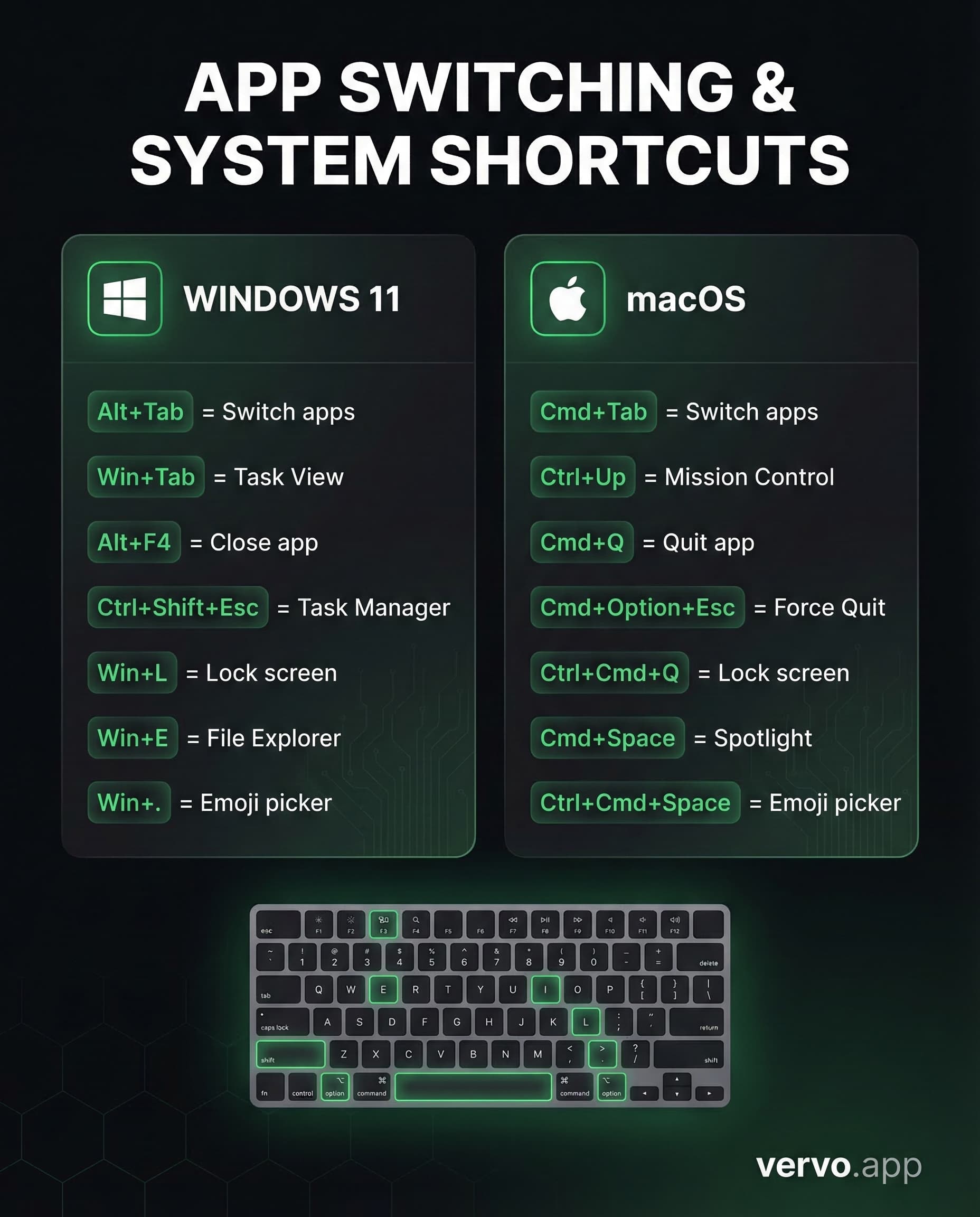
| Switch between open apps | Alt + Tab |
| View all open apps (thumbnails) | Ctrl + Alt + Tab |
| Open Task Manager | Ctrl + Shift + Esc |
| Lock your computer | Win + L |
| Open Settings | Win + I |
| Open Action Center | Win + A |
| Open notification center | Win + N |
| Open Quick Link menu | Win + X |
| Display/hide desktop | Win + D |
| Open Run dialog | Win + R |
| Open search | Win + S |
| Open Widgets | Win + W |
| Open Game Bar | Win + G |
| Minimize all windows | Win + M |
| Close current app | Alt + F4 |
Mac
| Action | Shortcut |
|---|---|
| Switch between apps | Cmd + Tab |
| Switch between windows of same app | Cmd + Grave accent (`) |
| Force quit an app | Option + Cmd + Esc |
| Lock screen | Control + Cmd + Q |
| Open Spotlight search | Cmd + Space |
| Open app preferences | Cmd + Comma (,) |
| Hide current app | Cmd + H |
| Hide all other apps | Option + Cmd + H |
| Minimize to Dock | Cmd + M |
| Toggle full screen | Control + Cmd + F |
| Quit current app | Cmd + Q |
Win + X on Windows is a sleeper. It opens a power menu with quick access to Terminal, Device Manager, Disk Management, Task Manager, and more. System admins live in this menu.
Browser shortcuts (Chrome, Edge, Safari, Firefox)
You spend most of your day in a browser. These work across all major browsers on both platforms.
| Action | Windows | Mac |
|---|---|---|
| New tab | Ctrl + T | Cmd + T |
| Close tab | Ctrl + W | Cmd + W |
| Reopen last closed tab | Ctrl + Shift + T | Cmd + Shift + T |
| Switch to next tab | Ctrl + Tab | Cmd + Option + Right Arrow |
| Switch to previous tab | Ctrl + Shift + Tab | Cmd + Option + Left Arrow |
| Jump to specific tab (1-8) | Ctrl + 1 through 8 | Cmd + 1 through 8 |
| Jump to last tab | Ctrl + 9 | Cmd + 9 |
| Open new window | Ctrl + N | Cmd + N |
| Open incognito/private | Ctrl + Shift + N | Cmd + Shift + N |
| Focus address bar | Ctrl + L or Alt + D | Cmd + L |
| Refresh page | Ctrl + R or F5 | Cmd + R |
| Hard refresh (ignore cache) | Ctrl + Shift + R | Cmd + Shift + R |
| Zoom in | Ctrl + Plus (+) | Cmd + Plus (+) |
| Zoom out | Ctrl + Minus (-) | Cmd + Minus (-) |
| Reset zoom | Ctrl + 0 | Cmd + 0 |
| Go back | Alt + Left Arrow | Cmd + Left Bracket ([) |
| Go forward | Alt + Right Arrow | Cmd + Right Bracket (]) |
| Open downloads | Ctrl + J | Cmd + Shift + J (Safari: Option + Cmd + L) |
| Open history | Ctrl + H | Cmd + Y |
| Bookmark current page | Ctrl + D | Cmd + D |
Ctrl + Shift + T (reopen closed tab) has saved more people from panic than any other shortcut in existence. Accidentally closed that tab with the important form you were filling out? One keystroke. It is back.
Accessibility shortcuts (for everyone)
Accessibility features are not just for people with disabilities. Zoom is useful when you are squinting at a tiny spreadsheet. High contrast helps when your screen is washed out by sunlight. Dictation saves your wrists on long writing days.
Windows
| Action | Shortcut |
|---|---|
| Open Accessibility settings | Win + U |
| Turn on Magnifier | Win + Plus (+) |
| Turn off Magnifier | Win + Esc |
| Zoom in (Magnifier) | Win + Plus (+) |
| Zoom out (Magnifier) | Win + Minus (-) |
| Start Narrator | Win + Ctrl + Enter |
| Toggle color filters | Win + Ctrl + C |
| Open voice dictation | Win + H |
Mac
| Action | Shortcut |
|---|---|
| Open Accessibility shortcuts | Option + Cmd + F5 |
| Invert colors | Control + Option + Cmd + 8 |
| Zoom in | Option + Cmd + Plus (+) |
| Zoom out | Option + Cmd + Minus (-) |
| Start Dictation | Fn + D |
| Move focus to menu bar | Control + F2 |
| Move focus to Dock | Control + F3 |
How to actually memorize shortcuts (without losing your mind)
Reading a list of 200 shortcuts is interesting for about four minutes. Actually using them is a different challenge. Here is the approach that works.
Pick three. Just three.
Do not try to learn 50 shortcuts at once. Pick the three you would use most often and force yourself to use them for one week. Tape a sticky note to your monitor if you have to.
After a week, those three will be automatic. Pick three more.
The 20-shortcut rule
Research from productivity studies consistently shows that learning roughly 20 keyboard shortcuts accounts for about 80% of the time savings. You do not need to memorize every shortcut on this page. You need to find your 20.
Here are the 20 that cover the most ground:
- Copy, Cut, Paste (3)
- Undo and Redo (2)
- Find (1)
- Screenshot selection (1)
- Snap window left and right (2)
- Switch apps (1)
- New tab, close tab, reopen closed tab (3)
- Save (1)
- Select all (1)
- Lock computer (1)
- Open file manager (1)
- Paste without formatting (1)
- Jump one word left/right (2)
That is 20. Learn those and you are faster than 90% of the people you work with.
Practice during low-stakes moments
Do not try to learn shortcuts when you are on a deadline. Practice when you are browsing casually, organizing files on a Sunday, or writing a message that does not matter. Low pressure, high repetition.
The pattern behind shortcuts
Here is something that makes shortcuts way easier to remember: they follow patterns.
On Windows:
- Ctrl + letter = do something in the current app (Ctrl+S saves, Ctrl+F finds, Ctrl+P prints)
- Win + letter = do something with the operating system (Win+E opens Explorer, Win+I opens Settings, Win+L locks)
- Alt + something = navigate or access menus
- Shift = modifier that adds "more" or "reverse" (Shift+Ctrl+Z = redo, Shift+Delete = permanent delete)
On Mac:
- Cmd + letter = do something in the current app (same concept as Ctrl on Windows)
- Option = alternative action (Option+Click = advanced version of that action)
- Control = system-level or focus controls
- Fn = function key actions and new Sequoia features
Once you see the pattern, new shortcuts start making sense before you even look them up.
How this connects to everything else
Keyboard shortcuts are really about one thing: removing friction between what you want to do and actually doing it.
That same friction shows up everywhere. You know what you want to type in a spreadsheet but you have to Google the formula. You know what you want to say in a text but you are staring at the screen trying to find the right words. The gap between intention and action is where time disappears.
Tools that close that gap -- whether it is keyboard shortcuts for your computer or AI-powered reply suggestions for your texts -- exist to get you from "thinking about it" to "done" faster.
If you have ever spent 10 minutes crafting one text message, you know the feeling. vervo.app does for texting what keyboard shortcuts do for your computer: screenshot the conversation, get three reply options, pick the one that sounds like you. The gap closes. The message sends. You move on with your day.
Five free replies a day. No keyboard access. No data stored.
Try vervo.app free -- 5 replies a day, no credit card.
Sources
- Keyboard shortcuts in Windows -- Microsoft Support -- Complete Windows keyboard shortcut reference
- Snap your windows -- Microsoft Support -- Snap Layouts and window management
- Best shortcuts for PC users -- Microsoft Windows Learning Center -- Productivity shortcuts and tips
- Unlock Productivity with the Copilot Key -- Microsoft -- Copilot key overview and customization
- Mac keyboard shortcuts -- Apple Support -- Complete Mac shortcut reference
- Mac window tiling icons and keyboard shortcuts -- Apple Support -- macOS Sequoia tiling shortcuts
- Tile windows on Mac -- Apple Support -- Window tiling guide